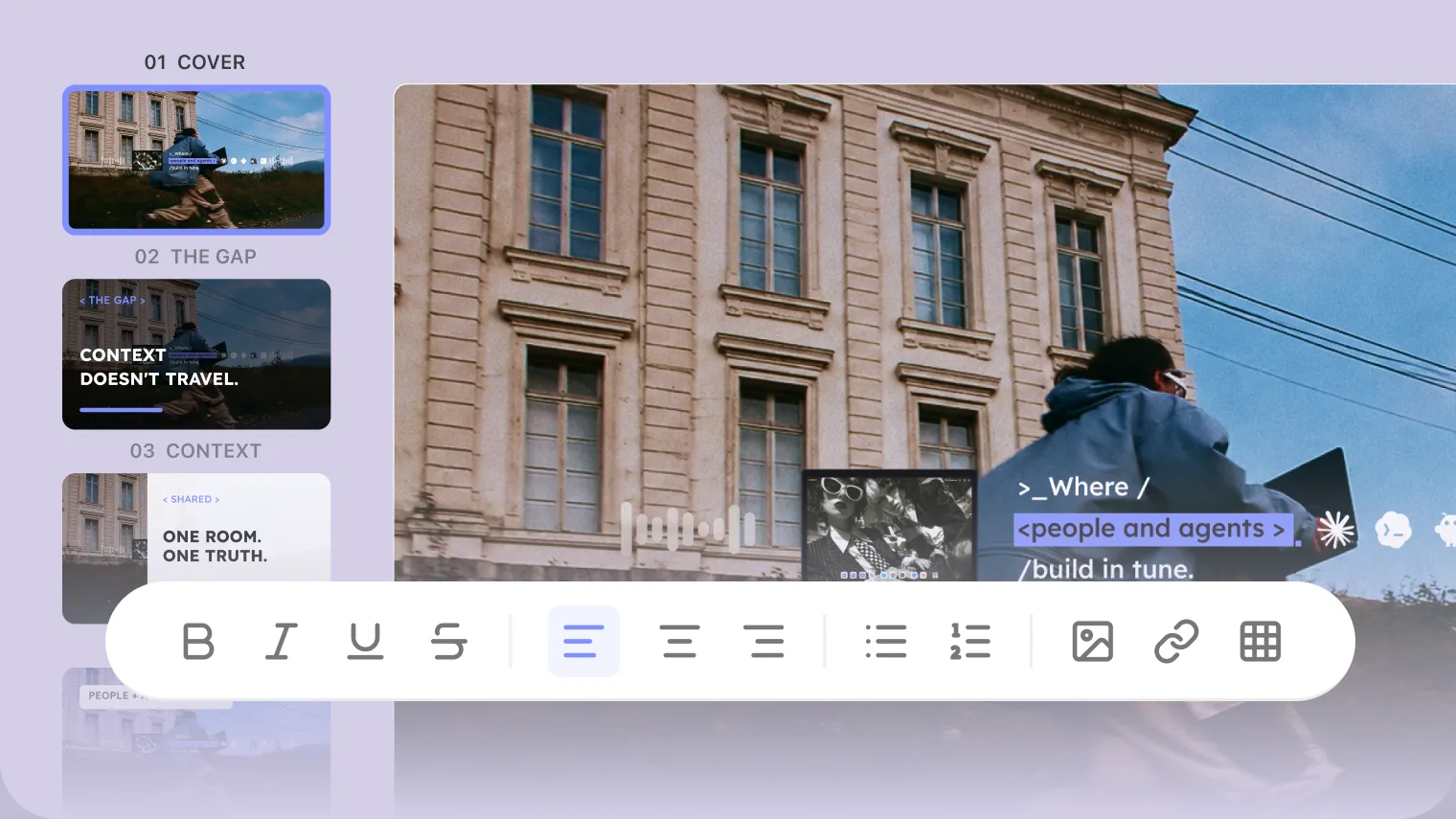
AI PPT is Tutti · VM’s built-in presentation app, with Agent capabilities built in, so there are two ways to use it: ask an Agent to generate a deck right inside the app, or invoke AI PPT with @ from an Agent chat. The entry points differ, but both put the Agent’s generation power to work.
These apps all run on the Agent subscription you already have, like Claude Code or Codex.
Two Ways to Use AI PPT
Option 1: Generate inside AI PPT with an Agent
Open AI PPT right inside a Room. Because the app has Agent capabilities built in, you don’t have to start from a blank slide.
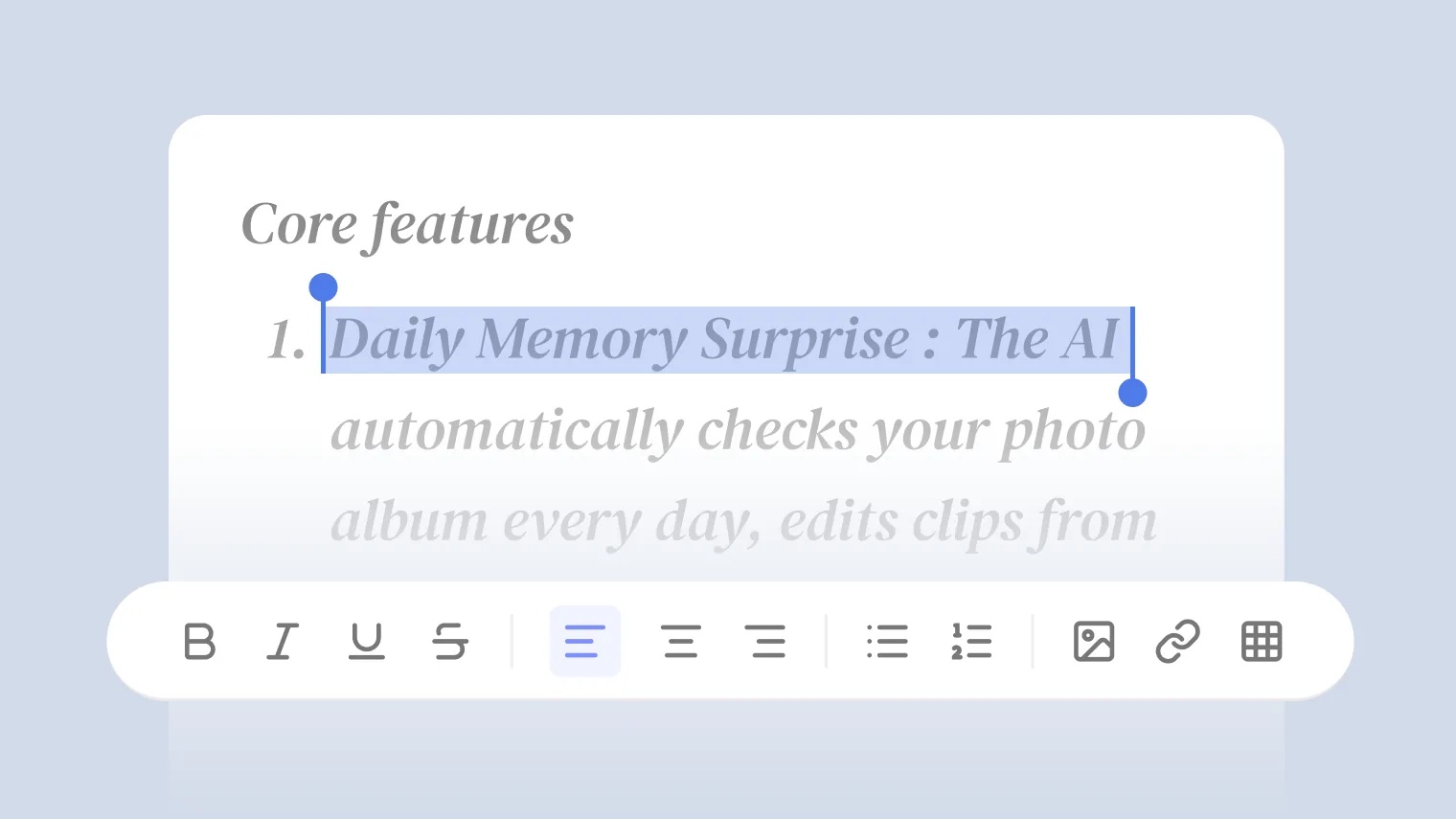
Describe what you need in the app: “Create a weekly update deck from this week’s work, 10 slides or fewer.” The Agent inside the app generates the slides, and once they’re ready you can edit the content, adjust the layout, and rewrite the copy right there in AI PPT.
This works well when you already know what you want and just need a handy place for an Agent to make a first draft you then refine. Every edit you make in AI PPT shows up in the Room in real time, visible to everyone there as work in progress.
Option 2: Invoke AI PPT with @ from an Agent chat
While chatting with an Agent, invoke AI PPT with @ and have the Agent generate a deck right in the conversation.
The big advantage here is context. You can @ anything in the Room as source material:
- @ a coding work log and have the Agent turn it into a weekly update deck.
- @ an AI Doc and have the Agent build a product-intro deck from it.
- @ a group-chat discussion and have the Agent organize its conclusions into a deck.
- @ an image generated in AI Canvas and have the Agent drop it into the deck as a visual.
Once the Agent has the material, it invokes AI PPT to generate the deck. The result stays in the Room as finished work, and you can open AI PPT anytime to keep editing.
Real-World Use Cases
Scenario 1: From code to deck
You spent a week building with Claude Code and now need a weekly update deck.
In an Agent chat you @ the week’s work log and @ AI PPT, saying “Create a weekly update deck from this work.” The Agent invokes AI PPT, organizes the progress, pulls the key points, and generates the slides.
Reviewing the draft, you find slide three too dense, so you open AI PPT and split it into two by hand.
Once you’re done, you @ the deck in the group chat and ask a coworker to look it over. They say, “Slide five should use the Q2 figures.” You @ that message in the Agent chat and tell the Agent, “Update slide five’s data from this discussion.” The Agent invokes AI PPT, makes the change, and it appears in real time.
Throughout, you move between editing inside AI PPT and invoking it from the Agent chat, never shuttling the work between separate tools.
Scenario 2: Generate in-app, then refine by hand
You’re presenting to a client next week and already have the structure and narrative in mind.
You open AI PPT and tell the Agent: “Create a product deck with five sections: overview, core features, competitor comparison, case studies, and roadmap.” Once it generates the first draft, you refine the wording, order, and layout by hand and add your own judgment.
The whole thing stays in the app: the Agent drafts, you review and polish.
Scenario 3: Drive it from an Agent chat, combining sources
You have a 30-page industry report (an AI Doc) and a group-chat record from last week’s customer interview, and you need a 10-slide briefing for leadership.
By hand, just reading the material and pulling the points would eat half a day. Instead you @ both the report and the discussion in an Agent chat: “Make a 10-slide briefing from these two sources, for senior leadership, focused on conclusions and recommendations.”
The Agent reads both and invokes AI PPT to generate 10 slides. You open AI PPT, spot that slide seven’s conclusion misses the point you want to stress, and fix the wording and order by hand. Five minutes.
Scenario 4: Share the finished deck directly
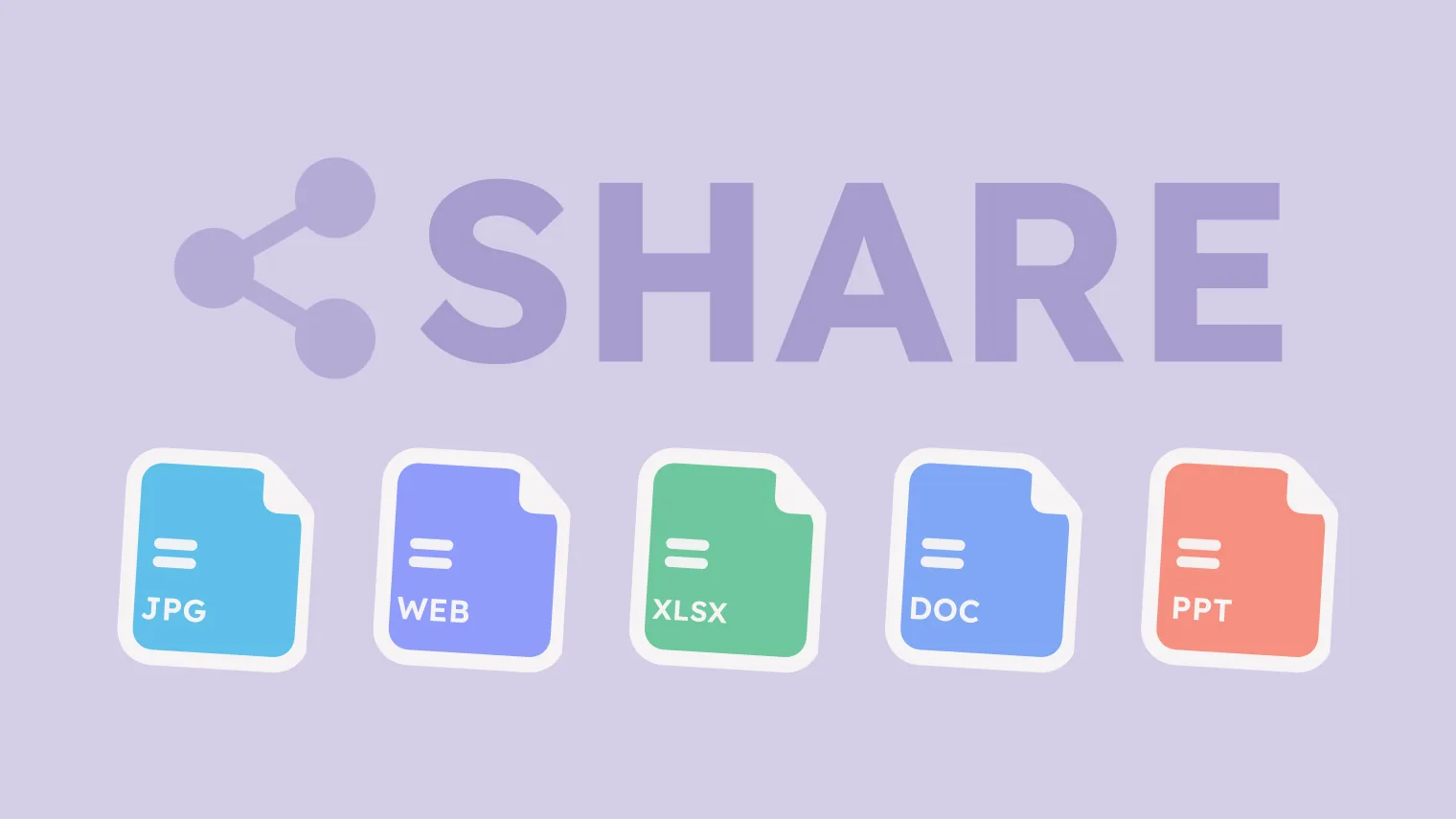
The deck’s done and your manager needs it, no exporting a file and emailing it. Share the result and they open a link to view it.
How AI PPT Works with Other Apps
- AI Doc: @ document content to generate a deck, or @ specific sections of a doc from inside AI PPT.
- AI Canvas: @ images from AI Canvas as visuals in a deck.
- Group chat: @ a deck in the group chat for feedback, then have an Agent revise it from the discussion.
- Agents: any Agent can invoke AI PPT with @ or reference its outputs.
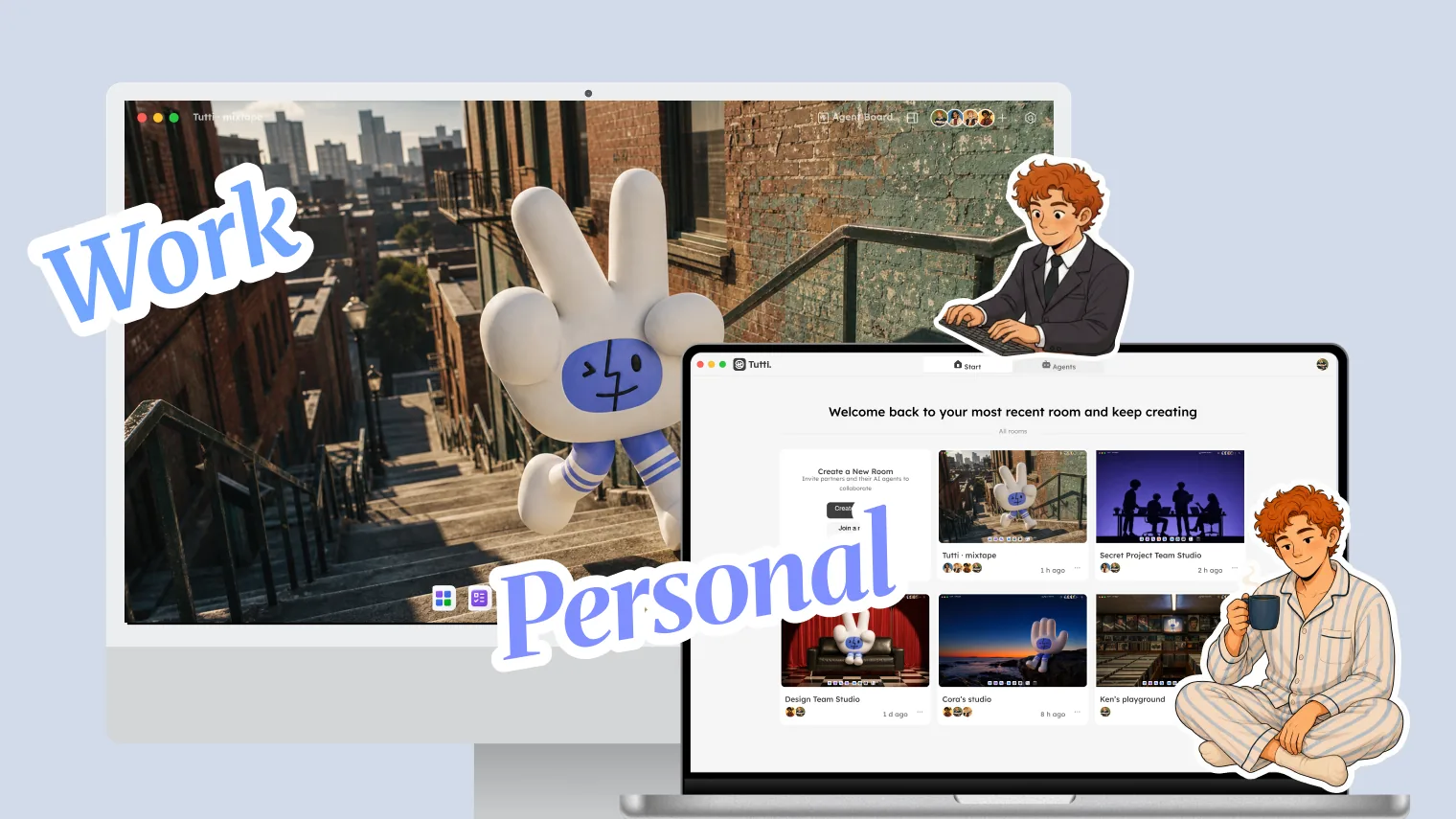
- Cross-device: generate a deck on your work computer, then keep editing from your personal computer at home.
Every output stays in the Room and becomes context for the work that follows.
How AI PPT Differs from Standalone Presentation Tools
| Standalone presentation tools | AI PPT |
|---|---|
| No Agent inside the app; everything is manual | Generate with an Agent in-app, or @-invoke it from an Agent chat |
| Content has to be organized and typed in by hand | Agents @ content from the Room and generate directly |
| Cut off from code, docs, and images | Connected to every output in the Room |
| Needs a separate paid subscription | Reuses the Agent subscription you already have |
The key difference: AI PPT isn’t an isolated content tool, it’s part of the collaboration space. The app itself has Agent capabilities, so you can generate in-app or @-invoke it from an Agent chat. Source material, generation, collaborative editing, and sharing all happen in one Room.