In the Age of Agents, Image Generation Goes Beyond “Type a Prompt, Get an Image”
There are plenty of AI image generators out there. You type a prompt, wait a few seconds, and get an image. For most tools, that’s where it ends.
In a real workflow, generating the image is only the first step. You make an illustration and want to use it in your code. You make a UI asset and want an Agent to build the page around it. You make a concept image and want a coworker to look at it, tweak it, and weigh in.
In a traditional flow, these steps are disconnected: the generator makes the image, you download it, upload it somewhere else, describe it to an Agent, and send it to a coworker. Context leaks at every handoff.
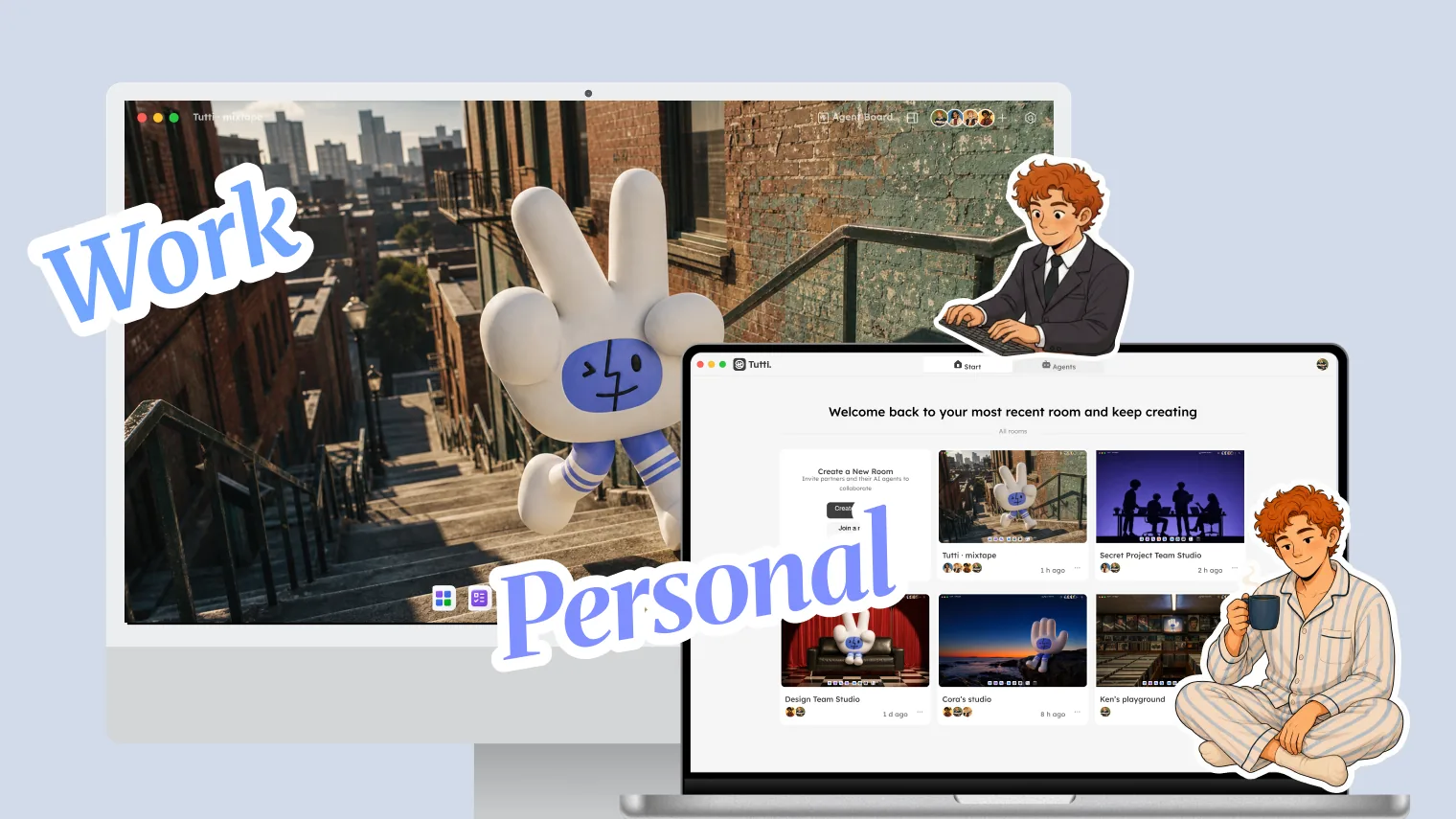
AI Canvas is built into Tutti · VM and brings image generation into the collaboration space. The images live in the Room by default, where people can see them, Agents can reference them, and coworkers can discuss them.
And it runs on the Agent subscription you already have, like Codex.
What AI Canvas Can Do
For you: generate images with AI
You can use the app yourself. Type a description in AI Canvas and it generates the image, brand assets, e-commerce creatives, storyboards, character/IP designs, product-packaging visuals, and so on. Same as other generators, with one difference: the image stays in the Room as part of the work state (the finished output), ready for you to reference next.
For Agents: a callable “skill”
Through @, an Agent can call AI Canvas right in the chat to generate a new image, so it effectively gains an image-generation “skill.”
Want to carry it into the next step, say dropping the image into a deck you built in AI PPT? In the Agent input box, @ the finished image from AI Canvas and use it as the source for what comes next.
Real-World Use Cases
Scenario 1: One Agent generates an image, another references it
You ask Codex to call AI Canvas and generate a product image. Once it’s made, the image stays in the Room.
Then you switch to the Claude Code chat, type @, and pick that image from AI Canvas. You tell Claude Code, “Adjust the homepage layout around this image.” Claude Code gets the image directly and reworks the layout and styling.
No downloading, no re-uploading, no describing the image. One @ does it.
Scenario 2: A team discusses image options
You and a coworker are building a product page, and you generate three options in AI Canvas.
You @ all three in the group chat and ask your coworker to vote. They say “the second one.” You @ the winning image in an Agent chat and have the Agent write the code around it.
Scenario 3: Iterative design
You had an Agent generate an e-commerce visual. The direction is right but the details aren’t. Right in AI Canvas, you @ the image and ask AI Canvas to keep revising it.
How AI Canvas Works with Other Apps
AI Canvas isn’t a standalone generator; it connects to the rest of the Room:
- Group chat: @ an AI Canvas image in the group chat to discuss it.
- AI Doc: @ an AI Canvas image as an illustration inside a document.
- Prototype design: @ a product visual from AI Canvas and embed it in a prototype.
- AI PPT: @ an AI Canvas image to embed it in a presentation.
- Agents: any Agent can call AI Canvas or reference its outputs through @.
Every output stays in the Room and becomes context for the work that follows.
How AI Canvas Differs from Standalone Generators
| Standalone image generators | AI Canvas |
|---|---|
| Images have to be downloaded after generating | Images are already in the Room |
| Using an image with an Agent means uploading and describing it by hand | Agents reference it directly with @ |
| Showing a coworker means a screenshot and a message | Coworkers see it directly in the Room |
| Edits have to be re-shared | Changes appear in real time and everyone in the Room sees the latest; to share outside, right-click the file, choose Share, and send the link |
| Cut off from code, docs, and designs | Connected to every output in the Room |
The difference isn’t the generation itself, it’s how the image moves through the rest of the workflow. In a standalone tool the image is an isolated output you carry by hand to the next step. In AI Canvas the image is part of the Room’s context, usable directly by every person and every Agent.
In Short
AI Canvas puts image generation inside the collaboration space. A generated image isn’t the finish line, it’s the starting point: people can edit it, Agents can reference it, coworkers can discuss it, all in one Room.
No downloading and re-uploading, no screenshot-and-describe, no carrying files between tools. One @ sends an image to any step of the workflow.