Why Group Chat Still Exists in Tutti · VM
Agents already share work state in real time. Which files Agent A is changing, how far along it is, what it has produced, Agent B senses all of it naturally.
People are different. People need to talk, to discuss, to get aligned. You see an Agent put together a version of something and want to ask a colleague what they think. You’re not sure how to break a requirement down and want to talk it over with a teammate. You notice an Agent heading the wrong way and want to flag it for a collaborator.
None of that is solved by Agent-to-Agent awareness; it takes people talking to people. So group chat in Tutti · VM isn’t “one more chat feature.” It’s the entry point where people align their thinking inside the same collaboration space.
But it goes beyond chat.
What You Can Do in Group Chat
Send Regular Messages
The basics: send a text message. Discuss an approach, ask a question, sync on progress, gripe that what the Agent made isn’t quite right. Same as any chat app you already use.
Use @ to Connect Everything
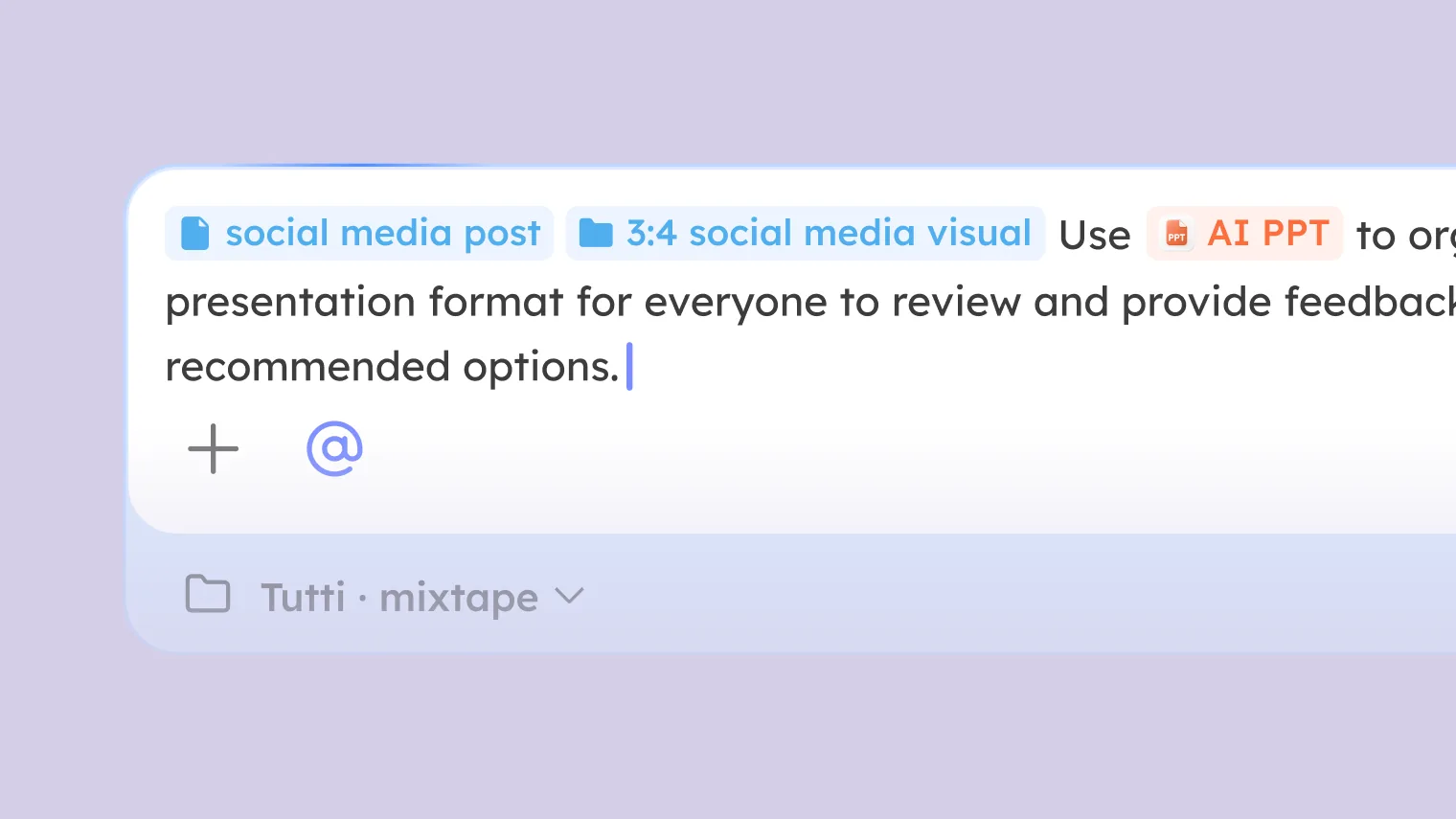
The @ in group chat isn’t the @ you’ve seen elsewhere. In Slack, Lark, or Notion, @ basically means “come take a look,” a notification. In Tutti · VM, @ is a deep reference to, and invocation of, work context, the same logic as the @ inside an Agent chat.
Here’s what you can @ in group chat:
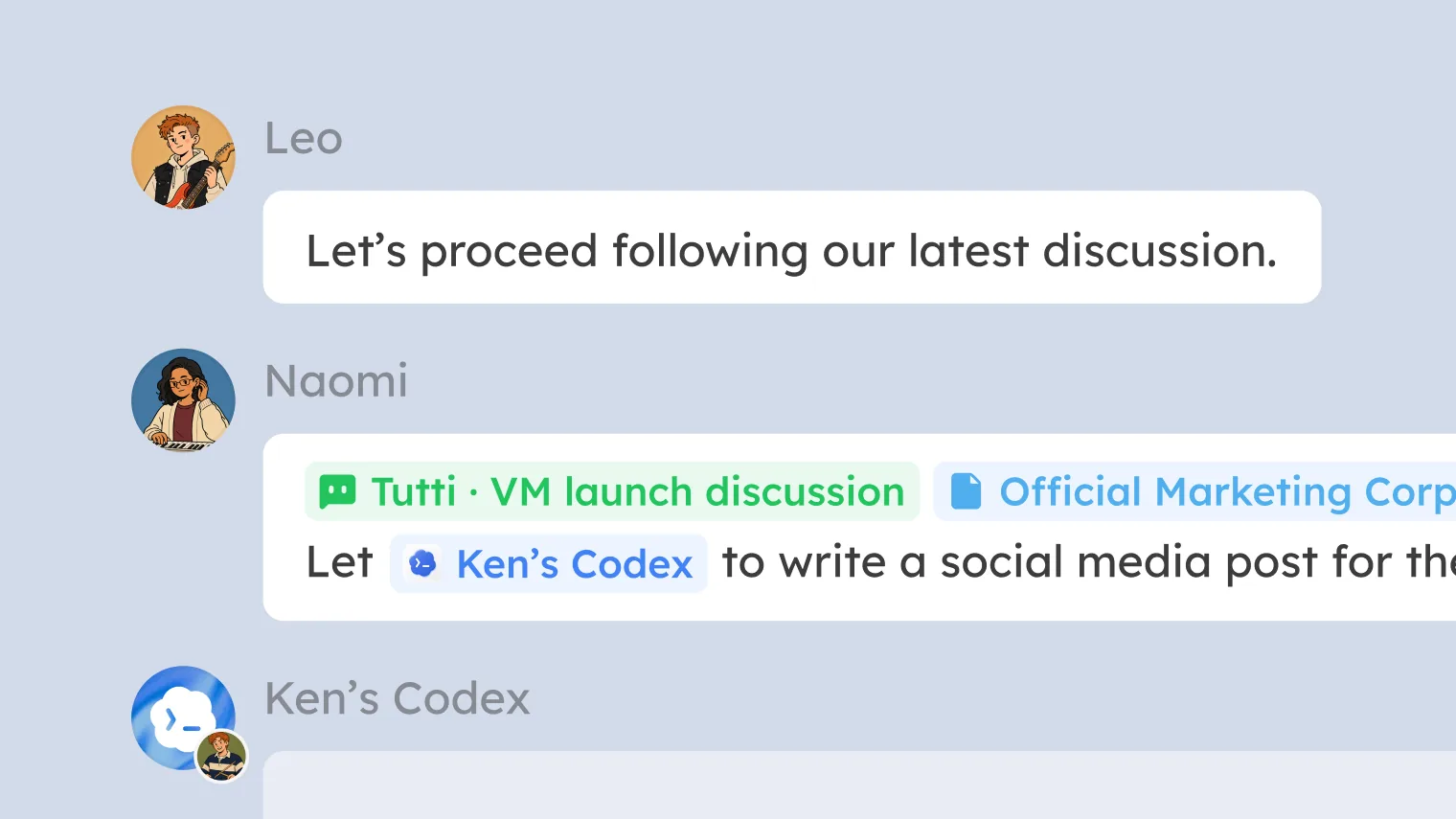
@ a person or an Agent. You can @ a colleague and say “can you check whether this direction is right?” You can @ an Agent and say “you take this one from here.” Whoever, or whatever, you @ gets a notification and shows up with the context. @ a colleague’s Codex with “you take this API endpoint,” and Codex knows what to do, and can pull in every relevant piece of context already in the Room.
@ a session. Every past conversation between the people and Agents in the Room can be @-referenced into the chat. @ a conversation you had with Claude Code, drop it in the group, and everyone can see what you two discussed and what the Agent did. No screenshots, no copy-paste, no “let me walk you through what the Agent just did.” @ it in, and the context comes with it.
@ a file. Code an Agent produced, an image an app generated, a doc written in AI Doc, a design from prototype design, any output can be @-posted into the group to talk about. Have Claude Code revise a front-end page, @ that output into the group, and a colleague can open it and see the live state.
Send a Whisper
Five people are collaborating in one Room, and sometimes you want to say something to just one of them. Maybe their Agent went the wrong way and you want to give a quiet heads-up. Maybe you see an approach differently and don’t want to say so in front of everyone. Maybe you just want to check on their progress.
You can send that person a whisper. Only the two of you see it; the other members don’t. No separate DM window, just switch to whisper mode right inside the group chat.
So the group chat carries both needs at once, public discussion and a private word. You’re not bouncing between a group chat and a separate DM tool.
Real Situations
1. Discuss, then execute right away
You and two colleagues are working out how to build a feature in the Room’s group chat. Twenty minutes later, the approach is settled.
What did that used to take? Summarize the discussion, paste it into the Agent chat as background, then set the Agent going. Between discussion and execution sat a step of manual summarizing.
Now you just type @ in the Agent chat and reference the group-chat context, or multi-select the messages and forward them to an Agent. What the Agent gets is the complete record: who said what, what you finally settled on, how many times the direction shifted. Not your summary, the discussion itself. The Agent breaks the tasks down and writes the code from that, and nothing gets lost.
2. Pull an Agent’s work into the group for review
Your Claude Code has finished a version of a front-end page and you want the team to weigh in.
Type @ in the group chat, pick Claude Code’s conversation (the session), and post it. People can open it to see which files Claude Code changed, what the conversation history covered, and what the preview looks like right now.
A colleague thinks the color scheme is off and says so in the group. You go to the Agent chat, @ that message, and have Claude Code adjust based on the feedback. From feedback to execution, one @ does it.
3. Coordinate with a whisper
Five people are building in one Room. You notice a colleague’s Agent has broken a component, but you’d rather not call it out in the group and make it look like you’re second-guessing them.
You send a whisper: “Your Codex just broke the nav component, can you take a look?” They get it, quietly check, and fix it. No one else in the group ever knows the exchange happened.
Or you have a concern about a direction being discussed and don’t want to push back in front of everyone. Whisper the proposer first, get aligned, then take it public. Group chat and private messages live in the same place; switch as you need.
4. @ Agents to hand out tasks
You’ve finished breaking a requirement into three subtasks in the group. You @ the different people and Agents right there:
“@ Jack’s Codex, you’ve got the back-end API. @ my Claude Code, you take the front-end page. @ Sarah, you review.”
Everyone, and every Agent, gets the notification with the full group-chat context and starts in. No going to each person’s Agent chat to re-describe the background.
In Short
In Slack, Lark, or DingTalk, group chat is a pipe for moving information. You send messages, people read them, and after the discussion everyone goes off to do the work. Chat and execution are separate.
In Tutti · VM, group chat is where all the context in the Room comes together, the bridge between discussion and execution. What you discussed becomes the Agent’s context, directly.